Ready-to-use AI Apps
Easily manage evaluation processes and produce documents in different formats.
User Profile Management
In this tutorial, you will learn how to manage your user profile on the platform. This includes editing your username, updating your password, changing your avatar, and deleting your account. We will also cover how to view the organizations you belong to and how to leave an organization.
How to Edit Your Username
To edit your username, first navigate to the Profile section. Once there, look for the icon next to the username field. Click on this icon to enable the editable field. Enter the new name you wish and save the changes by clicking on the icon highlighted in the image.
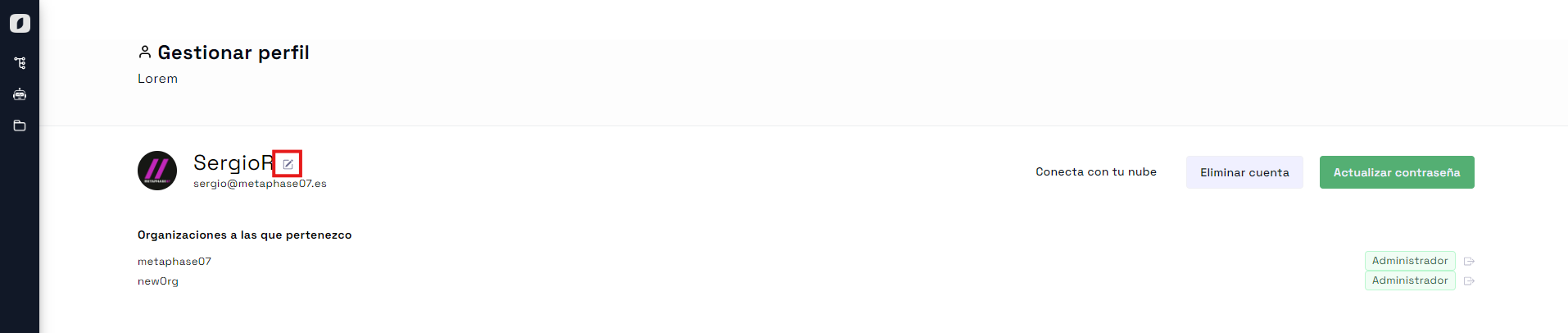 Username field with the edit icon highlighted
Editing your username is simple and allows you to personalize your profile according to your preferences. Make sure to choose a name that clearly identifies you on the platform.
How to Update Your Password
Updating your password is an important step to keep your account secure. In the "User Profile" section, you will find the "Change Password" option along with a "change" button. Clicking this will display the necessary fields for you to set a new password.
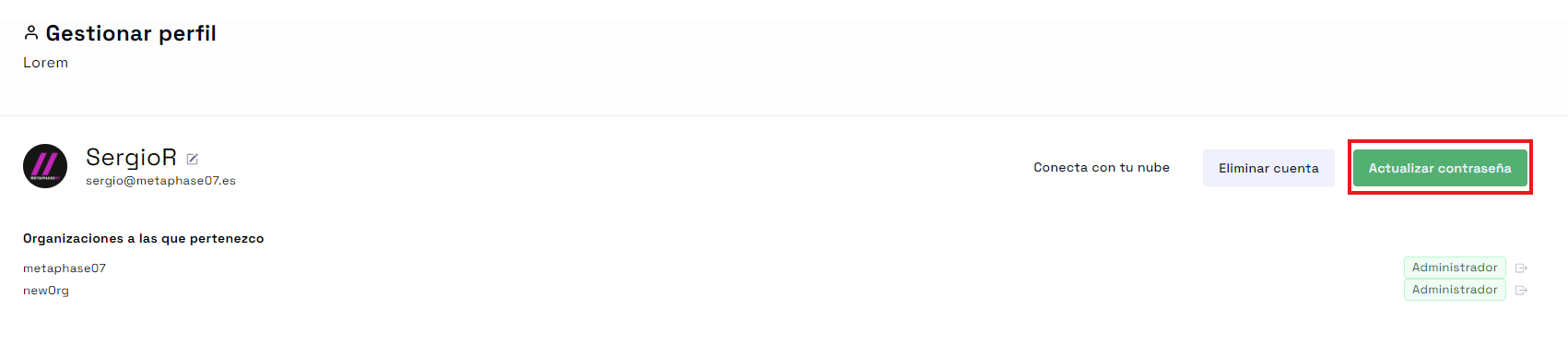 Button to update the password in the user profile section
First, enter your current password, followed by the new password you wish to set. Confirm the change to complete the process. Regularly changing your password is a good practice to protect your personal information and keep your account secure.
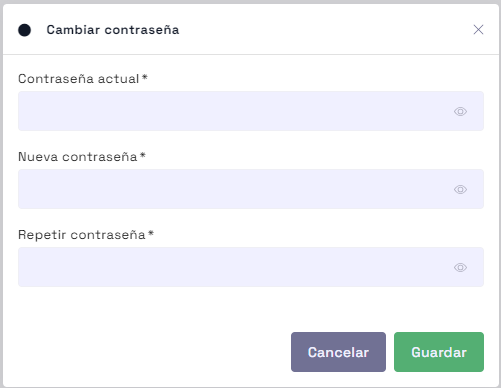 Pop-up form to update the password with fields for current and new passwords
How to Change Your Avatar
The avatar is a visual representation of your profile, and changing it is quite simple. Click on your current avatar to upload a new image from your device. A window will open where you can choose the avatar you wish to set for your account. Click on the selected photo, and it will update automatically.
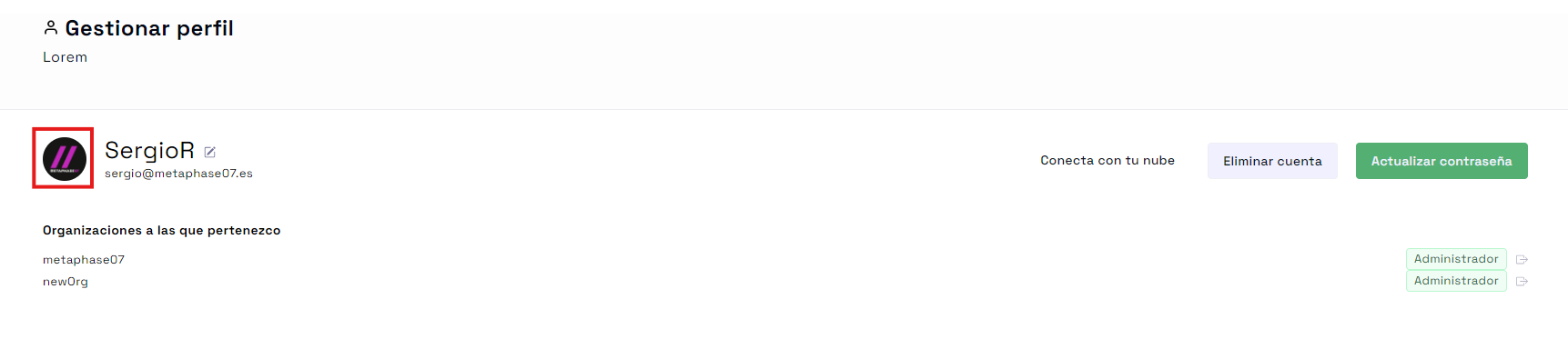 Form to upload a new avatar from your device
Once you’ve changed your avatar, a confirmation "alert" will appear in the bottom right corner to show whether the action was successful. This helps confirm that the change has been applied successfully.
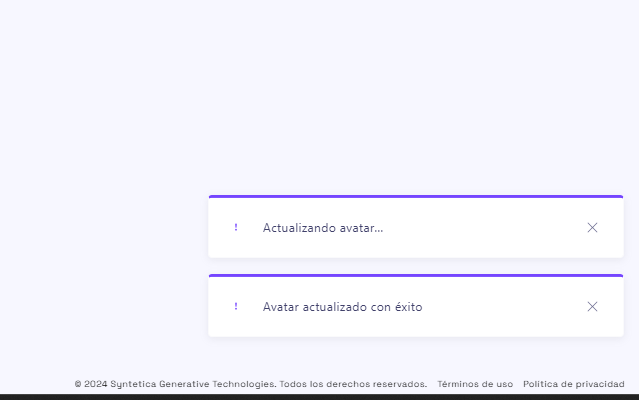 Confirmation message for avatar update in the bottom right corner
How to Delete Your Account
Deleting your account is an irreversible action, so make sure you really want to do it. In the "Manage Profile" section, you will find the "Delete Account" button. Clicking this button will bring up a pop-up asking for confirmation of the action.
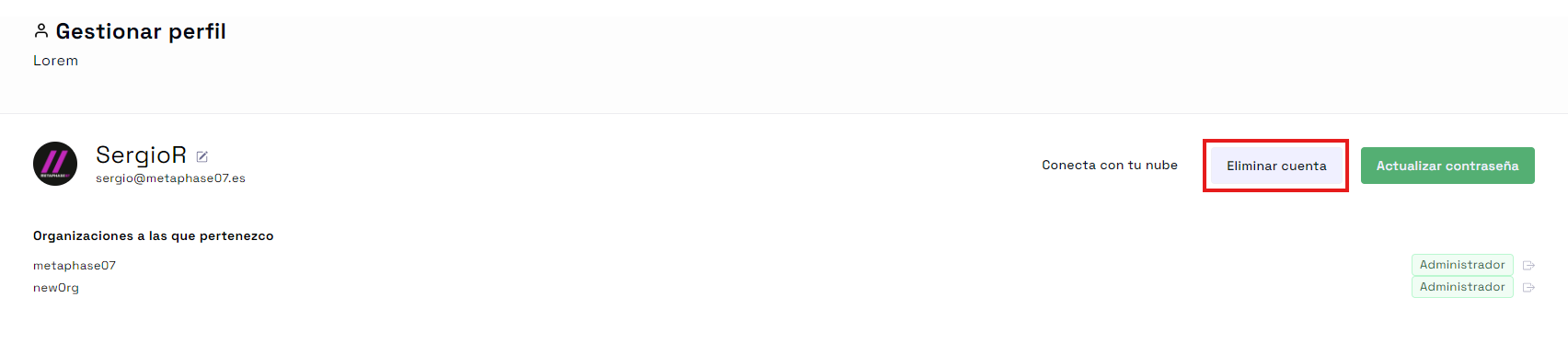 Button to delete account in the user profile section
Confirm your decision to proceed with account deletion. Remember that once deleted, you won’t be able to recover your information or access the platform with that account.
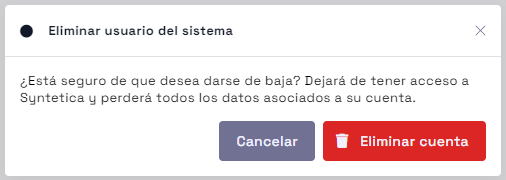 Pop-up confirmation for account deletion
How to View the Organizations You Belong To
In the same "Manage Profile" section, you can see the organizations you belong to. This information allows you to have a clear overview of your participation in different groups within the platform.
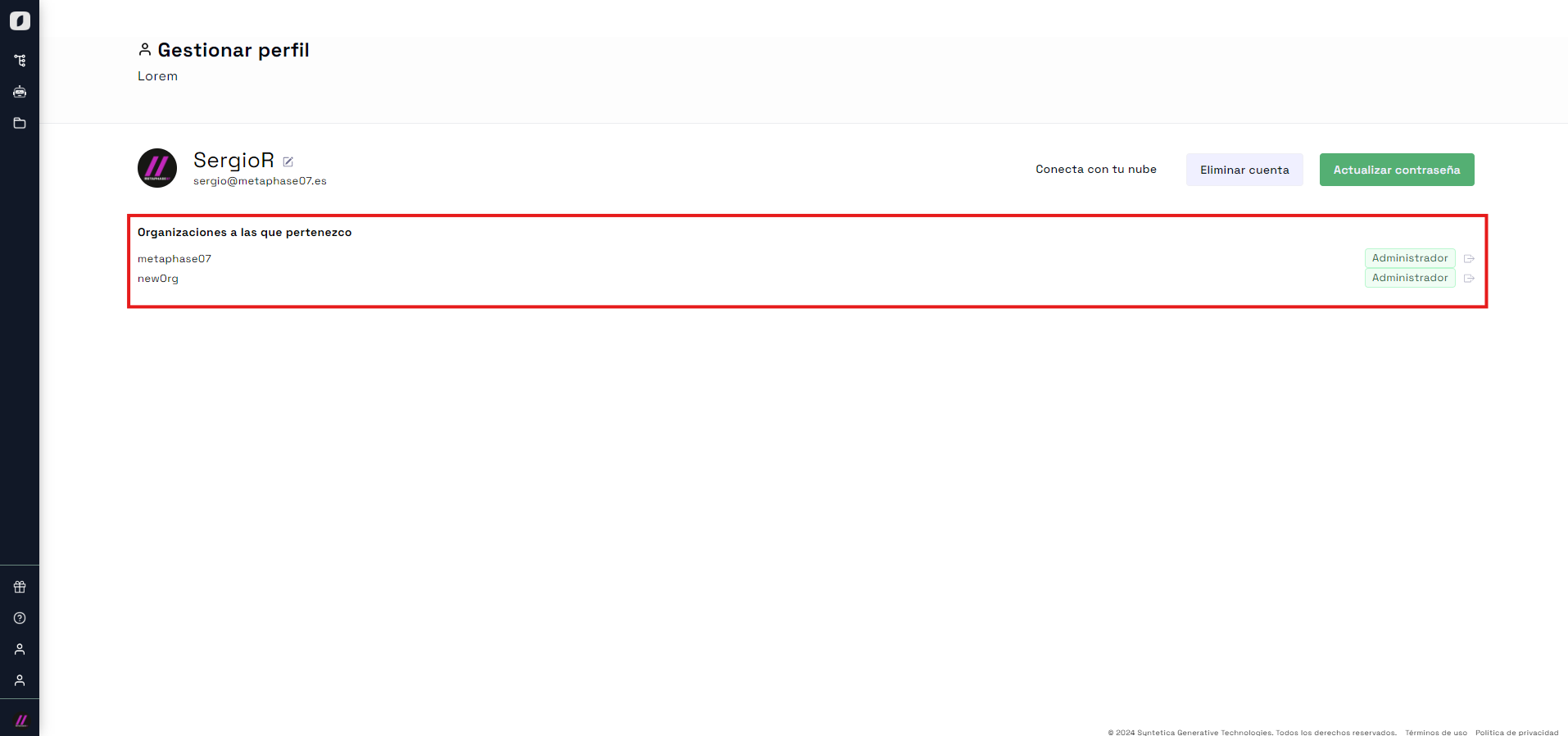 View of the organizations the user belongs to in the user profile section
How to Leave an Organization
If you decide to leave an organization, you can do so by clicking on the icon shown in the image from "Manage Profile". It is important to note that the default organization cannot be left, as the user must always belong to at least one organization.
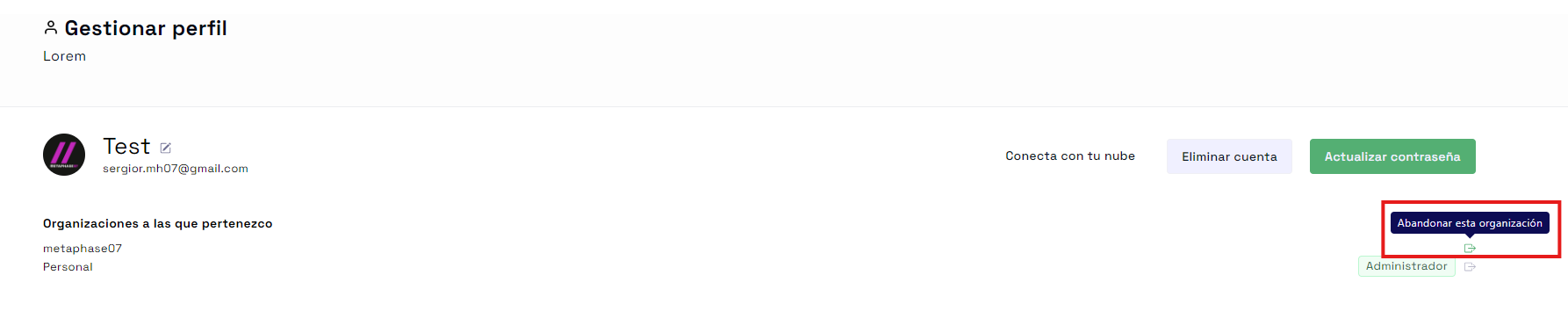 Icon to leave an organization in the user profile section
Leaving an organization is a simple process that allows you to manage your participation in different groups according to your needs and preferences.
Note: Be sure to consider the implications of leaving an organization, especially if you have specific roles or responsibilities within it.
Managing your user profile is essential to keep your account up-to-date and secure. By following these steps, you will be able to personalize and protect your information efficiently.


