Ready-to-use AI Apps
Easily manage evaluation processes and produce documents in different formats.
Block Types
The Syntetica generation tool is based on the use of different types of blocks that allow for the input, generation, and output of content. Each type of block has its own functionality and specific characteristics, enabling the creation of customized and efficient workflows. Below are the various types of blocks available and how they are used in the tool.
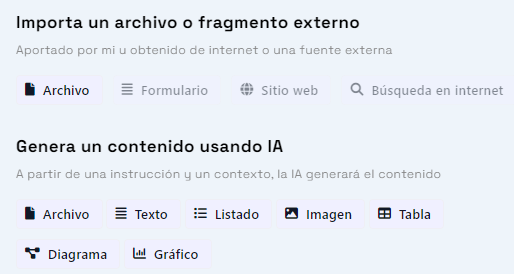 Block Types
Input Blocks
Input blocks are fundamental for incorporating information from external sources into the generative process. These blocks allow the artificial intelligence to access specific data that is not available on the internet, ensuring that the generated content is accurate and relevant.
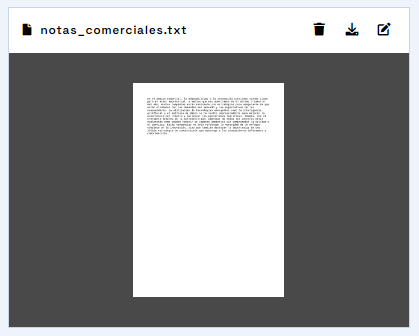 File input block, used to incorporate documents from the local computer or synchronized clouds
File
The file input block allows you to select a file from your local computer or from one of the clouds synchronized with your account. This file is processed to extract the relevant information that will be used in the generation blocks located in its branch. It is ideal for incorporating important documents such as reports, budgets, contracts, among others. It is important to note that the file formats compatible with this function include PDF, DOCX, DOC, PPTX, XLSX, CSV, TXT, as well as various image formats, providing great flexibility to work with different types of documents.
Internet Search (Coming Soon)
The search block will allow you to perform internet searches and use the obtained results as context for content generation. This functionality is still in development but promises to be a powerful tool for obtaining up-to-date and relevant information directly from the web.
Website (Coming Soon)
The website input block will allow you to enter a web address and, optionally, follow links from it to extract information. This functionality will be useful for incorporating content from specific websites, such as product pages, blogs, news, etc.
Form (Coming Soon)
The form block will dynamically generate a form based on a generation instruction. This form can be manually filled out, and the entered data will be used in the generative process. It is ideal for quickly and efficiently collecting structured information.
Generation Blocks
Generation blocks are the core of the Syntetica generation tool. These blocks allow you to create specific content such as texts, lists, tables, diagrams, charts, images, code, sound, and video. Each generation block receives a generation instruction (a prompt) and is nourished by the blocks located in the preceding context groups to produce the desired content.
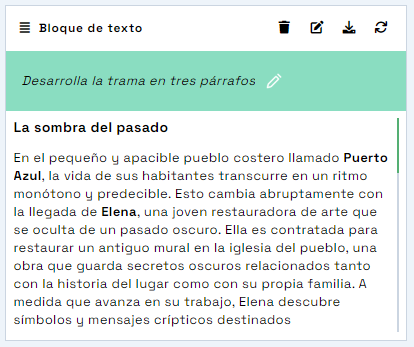 Text generation block, used to create texts composed of several paragraphs based on a specific instruction
Text
The text generation block allows you to create texts composed of several paragraphs. You can specify not only the theme but also the format, length, style, or language of the text. For example, you could use the instruction "Write the project introduction" or "Propose an idea for a novel in one paragraph".
List
The list generation block allows you to create a list of individual elements. These elements can individually condition the content generation in subsequent blocks. For example, you could use the instruction "List the employees mentioned in the report" or "Propose four business ideas".
Table
The table generation block allows you to create a sortable table by headers. In the generation instruction, you can specify the columns and rows for greater precision. For example, you could use the instruction "Detailed budget" or "Employee table, with a row for each worker and the columns: name, time worked, start date, end date".
Diagram
The diagram generation block allows you to create diagrams of different types according to the generation instruction. For example, you could use the instruction "Draw the worker hierarchy" or "A concept map on the discussed topics".
Chart
The chart generation block allows you to create data charts of different types (bars, lines, pie, etc.) according to the generation instruction. For example, you could use the instruction "Billing evolution over the last six months" or "Number of hours worked per worker".
Image
The image generation block allows you to create 2D images based on the generation instruction. For example, you could use the instruction "Generate a logo proposal for the company" or "A web design for the store".
Code (Coming Soon)
The code generation block will allow you to create blocks of encapsulated source code. For example, you could use the instruction "A function that returns the articles from the database" or "An HTML mockup with the section content".
Sound (Coming Soon)
The sound generation block will allow you to create audio segments of different types (voice, music, ambient sound) according to the generation instruction. For example, you could use the instruction "A narration of the previous text" or "30 seconds of beach ambient sound".
Video (Coming Soon)
The video generation block will allow you to create video segments based on the generation instruction. For example, you could use the instruction "Close-up of a woman dressed in red in Tokyo" or "A walk through the late 19th-century West".
Output Blocks
Output blocks allow you to consolidate and group the generated content into downloadable files. These blocks are essential for producing final documents that can be used outside of the generation tool.
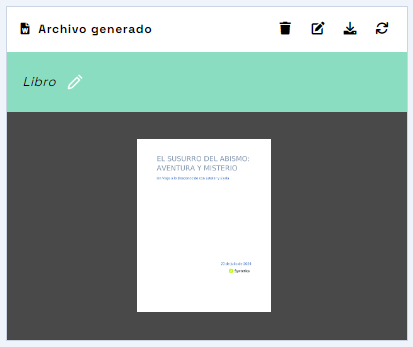 File output block, used to generate output documents in Word, PowerPoint, or Excel format
File
The file output block allows you to generate documents in Word (.docx), PowerPoint (.pptx), or Excel (.xlsx) format. The file name and the content provided through the context define the generation instruction. For example, you could generate an annual report in Word format, a sales presentation in PowerPoint, or a detailed budget in Excel. To select the format, after assigning a title to the document, you need to select "Edit Advanced Properties". Then, options will appear where you can select the type of file you want to generate: Word File, PowerPoint File, or Excel File.
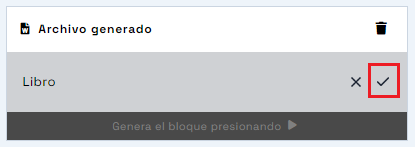 Assigning a title to the document
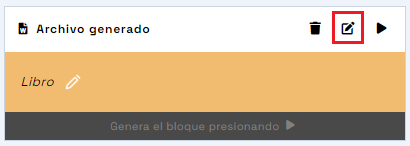 Selecting "Edit Advanced Properties"
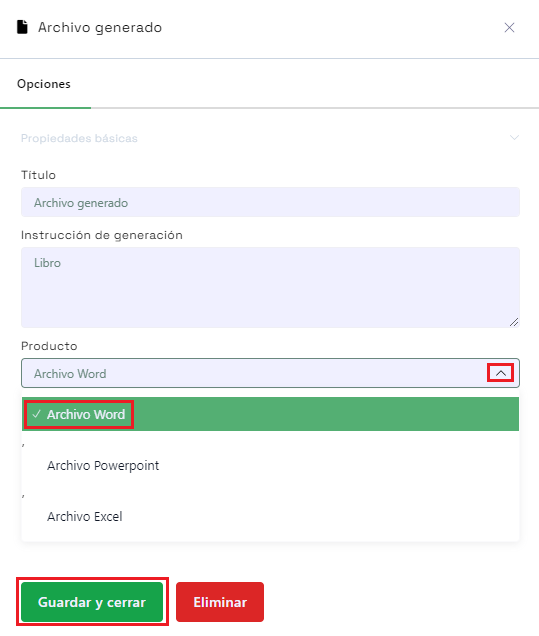 Selecting the output file format
Website (Coming Soon)
The website output block will allow you to generate a packaged flat HTML website or a WordPress template in a ZIP file. This functionality will be ideal for creating complete websites based on the generated content.
Video (Coming Soon)
The video output block will allow you to generate a long downloadable video in MP4 format, using the provided video and audio segments. This functionality will be useful for producing complete videos based on the generated content.
In summary, the different types of blocks available in the Syntetica generation tool provide great flexibility and customization in creating workflows. From incorporating external information to generating and consolidating content, these blocks are essential for producing high-quality documents and assets.


