Ready-to-use AI Apps
Easily manage evaluation processes and produce documents in different formats.
Registration and Access
In this tutorial, you will learn how to create an account on the platform, activate your account after initial registration, and access the tool. These steps are fundamental to start using all the functionalities that the platform offers.
How to Create an Account on the Platform
To create an account on the platform, you need an invitation. If you have received an invitation, follow these steps to register correctly. First, open the invitation link you received in your email or go to the Syntetica account creation page. Once on the page, complete the registration form by providing your username, email address, and password.
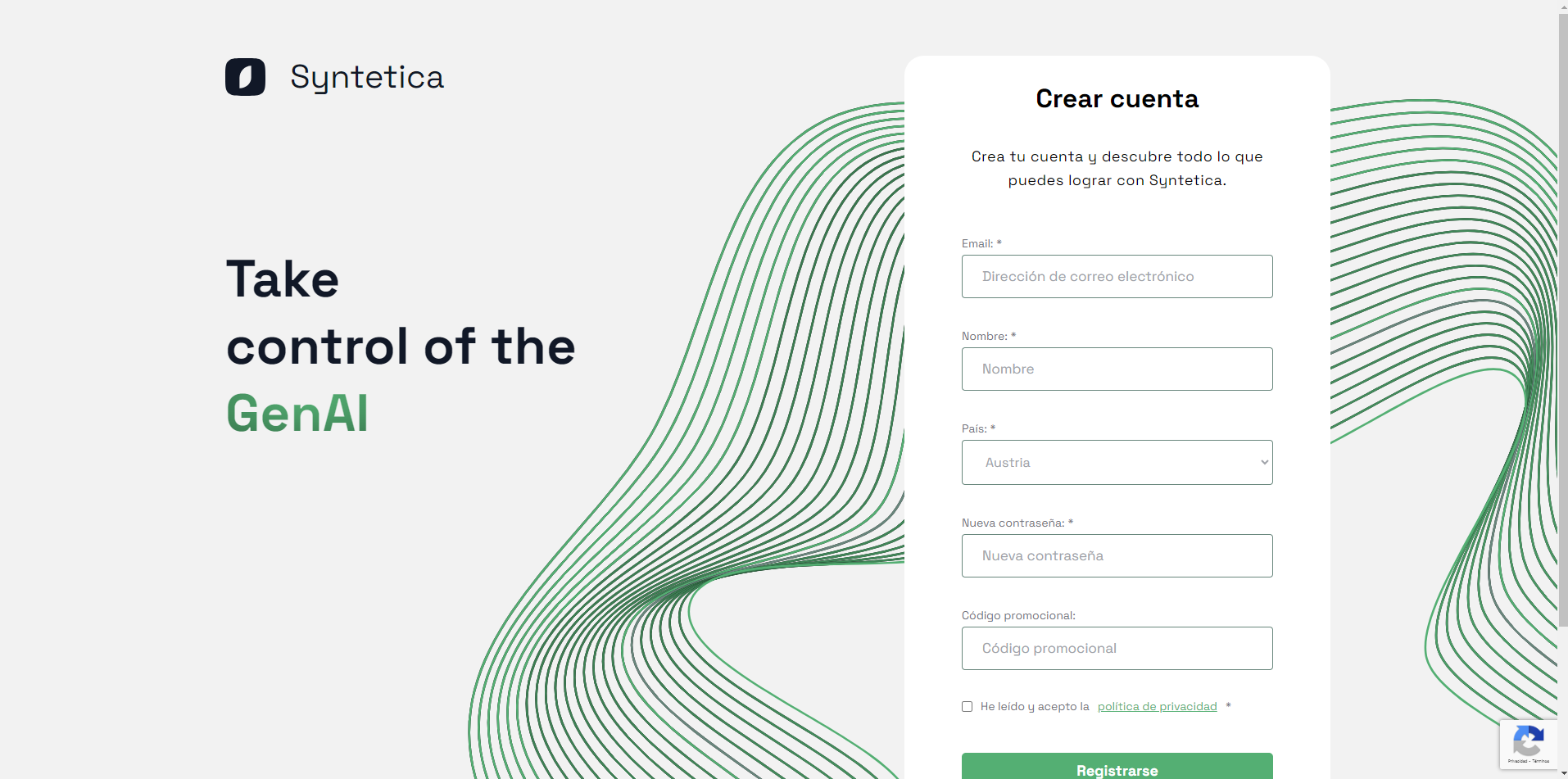 Account registration form with fields for username, email, and password.
After completing the form, click the "Register" button. You will then receive a confirmation email. It is essential to follow the instructions in the email to activate your account and proceed with access.
Note: If you do not receive the confirmation email, check your spam or junk mail folder. If you still cannot find the email, contact technical support for assistance.
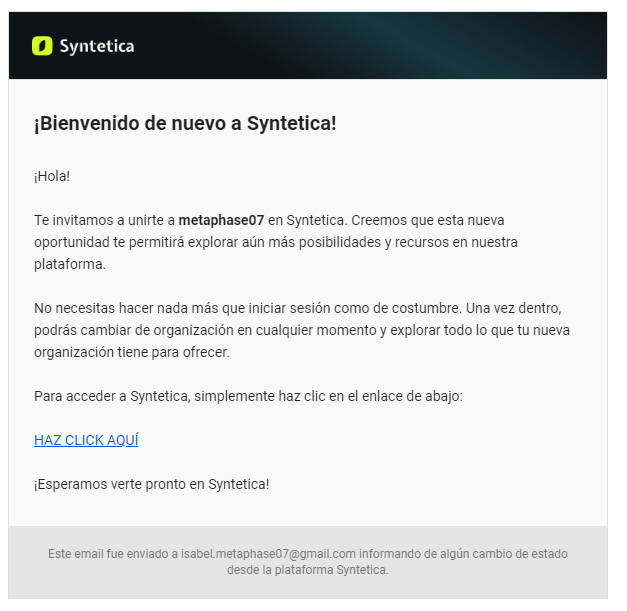 Account confirmation email with instructions to activate your account.
How to Activate Your Account After Initial Registration
Once you have completed the initial registration, you will need to activate your account to access the platform. To do this, check your email and look for the activation email. In the email, click on the included activation link.
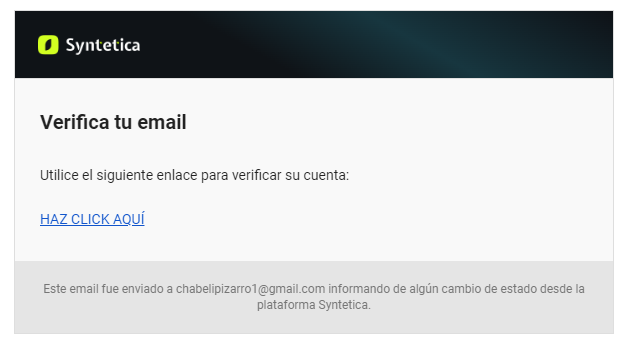 Activation email with a link to activate your account.
Clicking on the activation link will activate your account, and you will be redirected to the platform's home page.
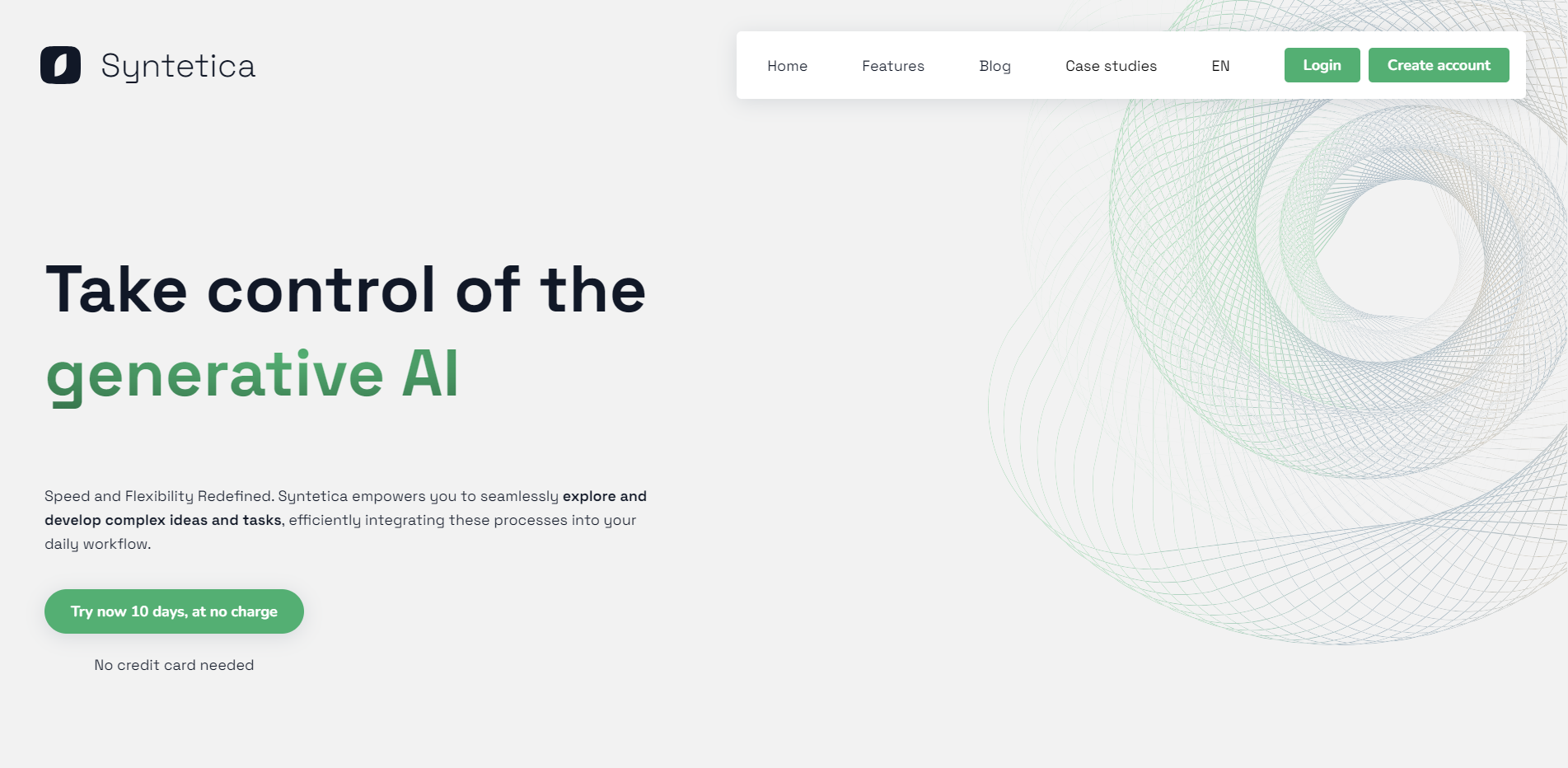 Platform home page.
You can now log in to the platform by following the steps described in the next section.
How to Access the Tool
To access the tool, go to the platform's login page. Once there, enter your username and password in the corresponding fields.
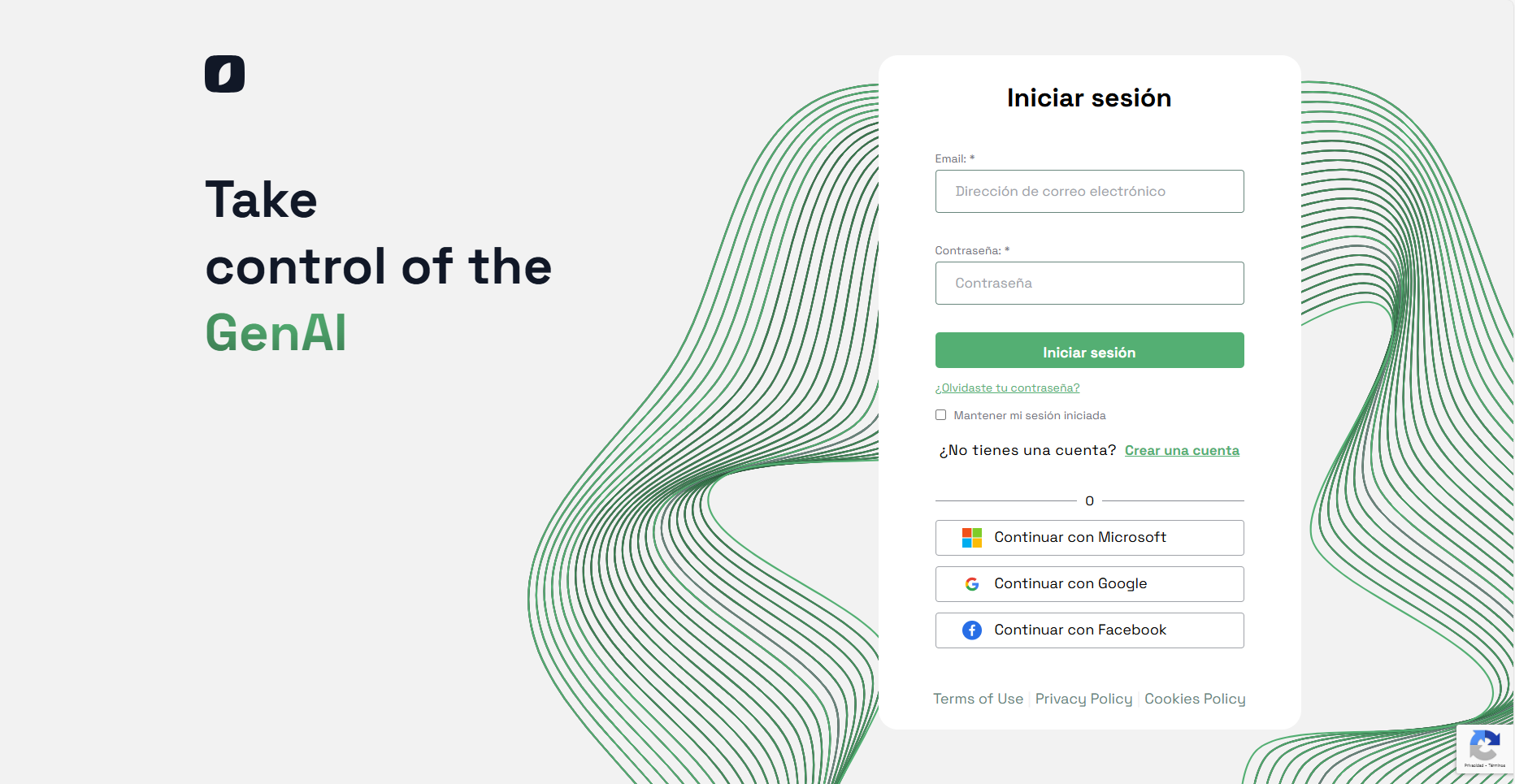 Login page with fields for username and password, and a login button.
After entering your credentials, click the "Log In" button. If your credentials are correct, you will be redirected to the private home page where you can access all the tool's functionalities.
Note: If you have forgotten your password, you can follow the steps to recover it described in the next tutorial.
With these simple steps, you will have completed the registration and access process to the platform, allowing you to explore and take advantage of all the capabilities it offers.


