Ready-to-use AI Apps
Easily manage evaluation processes and produce documents in different formats.
Running Applications
When you open an application in Syntetica, a guided flow starts that walks you through each step until the results are generated. The entire process is managed from a clear, centralized, and accessible interface. To begin, go to the Applications section and click "Use this app" on the app you want to run.
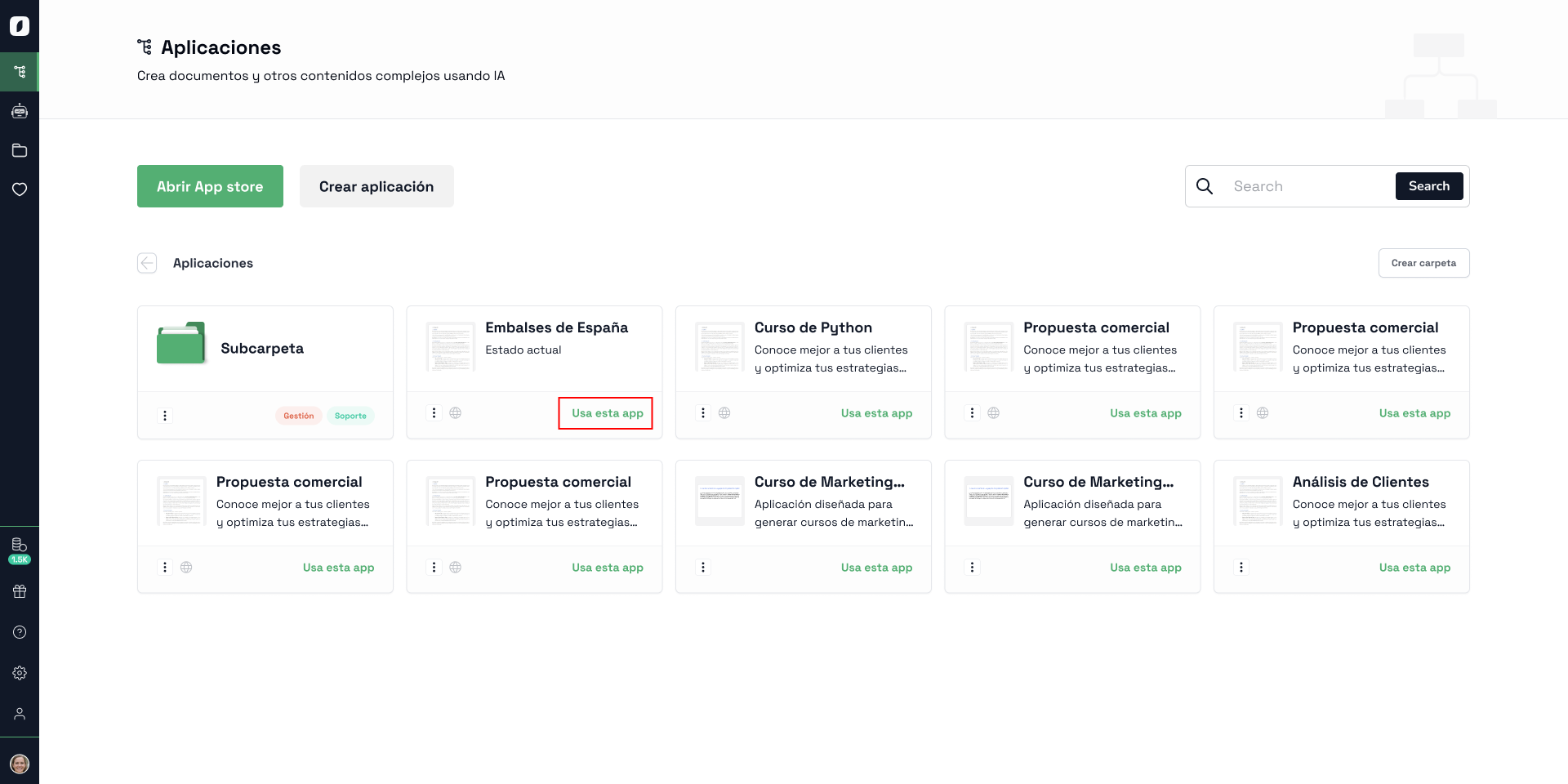 General view of the application interface highlighting the "Use this app" button
Starting the Application
When you run an app, an interface opens where you can start the process and track its progress. The screen includes the following key elements:
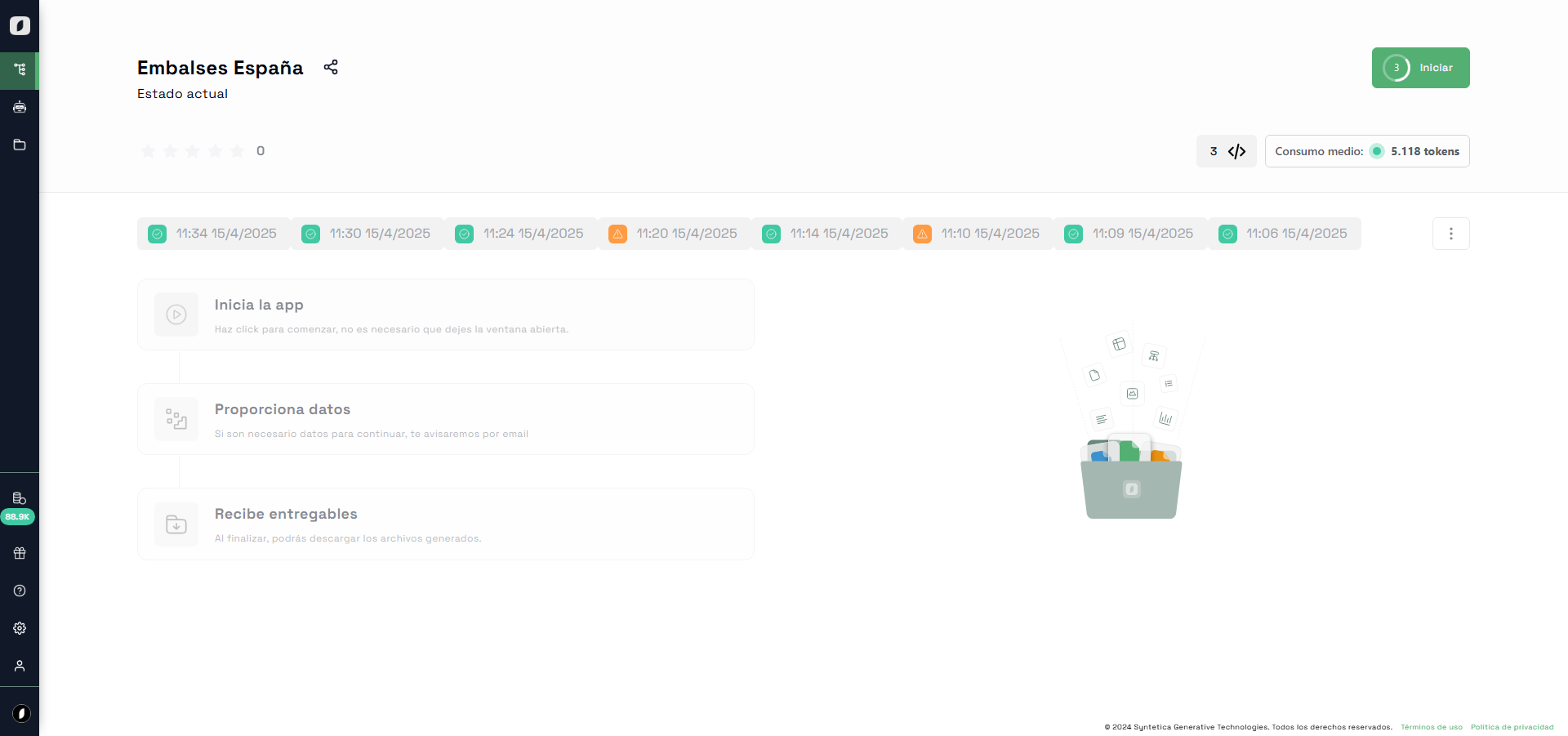 General view of the interface when running an app
- App Title and Description: In the top left corner, you'll find the name of the application and a brief description of how it works.
- Share Button: Next to the app title, there's a button that lets you share the app via social media or email.
- Rating System: Below the app title, you can rate the app using a five-star rating system. This can be done after the app finishes running.
- Start Button: In the top right corner, you’ll find the green “Start” button. Click it to launch the app’s process.
- Token Usage and Deliverables: Just below the start button, you'll see the estimated token usage for running the app. If the app generates files, you’ll also see the expected deliverables, such as documents or reports. If you don't have enough tokens, you'll be prompted to top up.
In the top right corner, click the green “Start” button to begin. A window will pop up where you can enter your email address to receive the generated files. This step is optional: you can type in your email and click “Send,” or just click “Send” without filling it in. The app will begin running right after. You don’t need to keep the window open during execution — we’ll notify you if action is required.
Note: If you enter your email address before launching the app, you'll receive the deliverables even if you close the platform. This step is optional but helpful if you prefer to review the results later.
 Image highlighting the “Start” button to begin execution
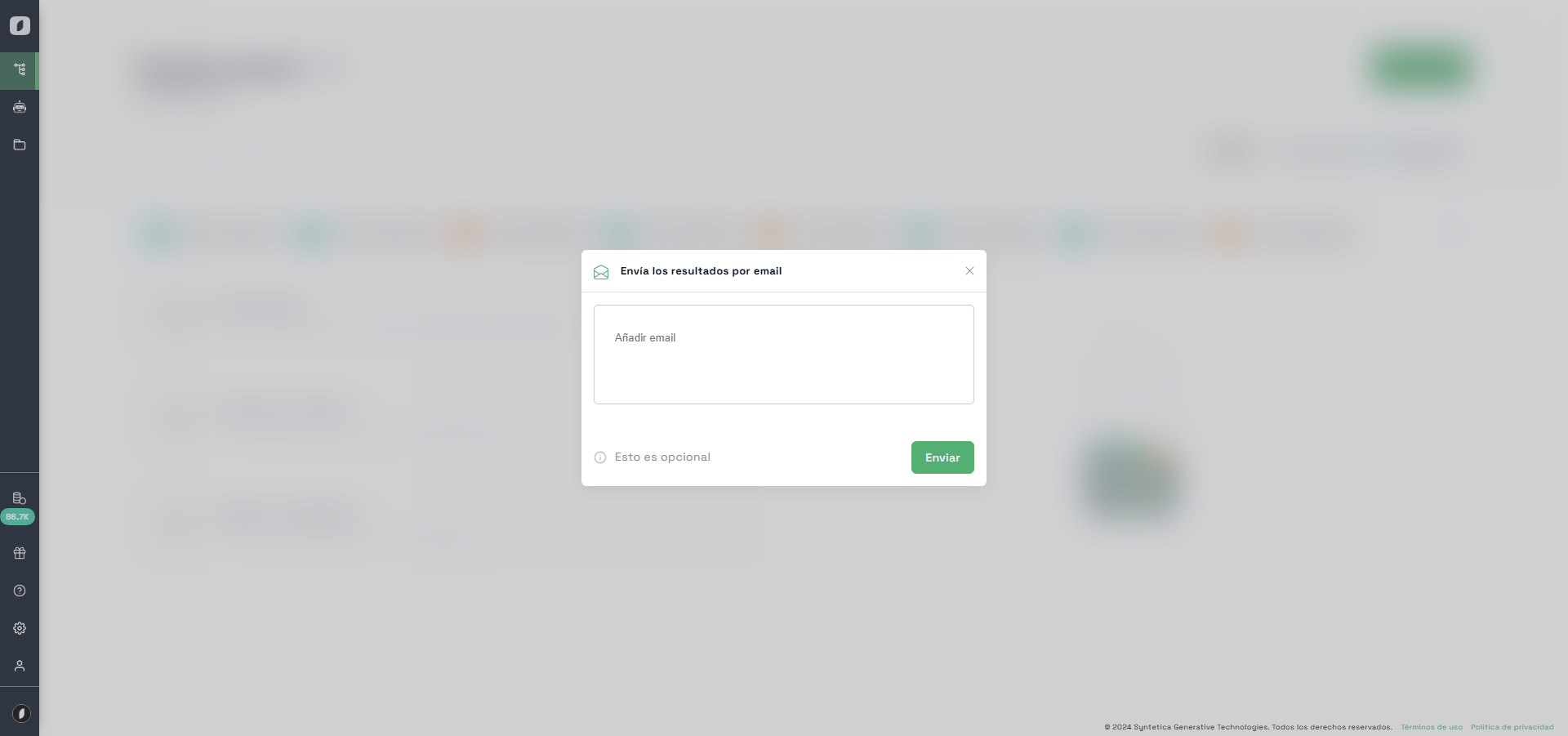 Image of the modal window that appears after clicking “Start,” where you can enter your email address to receive the generated files
Execution Tracking
Every time you open an application, a new tab is created with the time and date of the execution. This allows you to check and switch between different runs easily, keeping everything organized. Each tab shows one of three statuses, giving you a clear real-time view of the progress:
Note: You can run multiple apps at the same time and switch between them easily from the top tabs. Each tab shows the real-time status so you can stay in control at all times.
- Completed: The execution is finished and the deliverables are ready to download.
- Waiting for User Data: The system requires you to complete a form or upload a file to continue.
- Running: The system is processing your request and continuing with the operation.
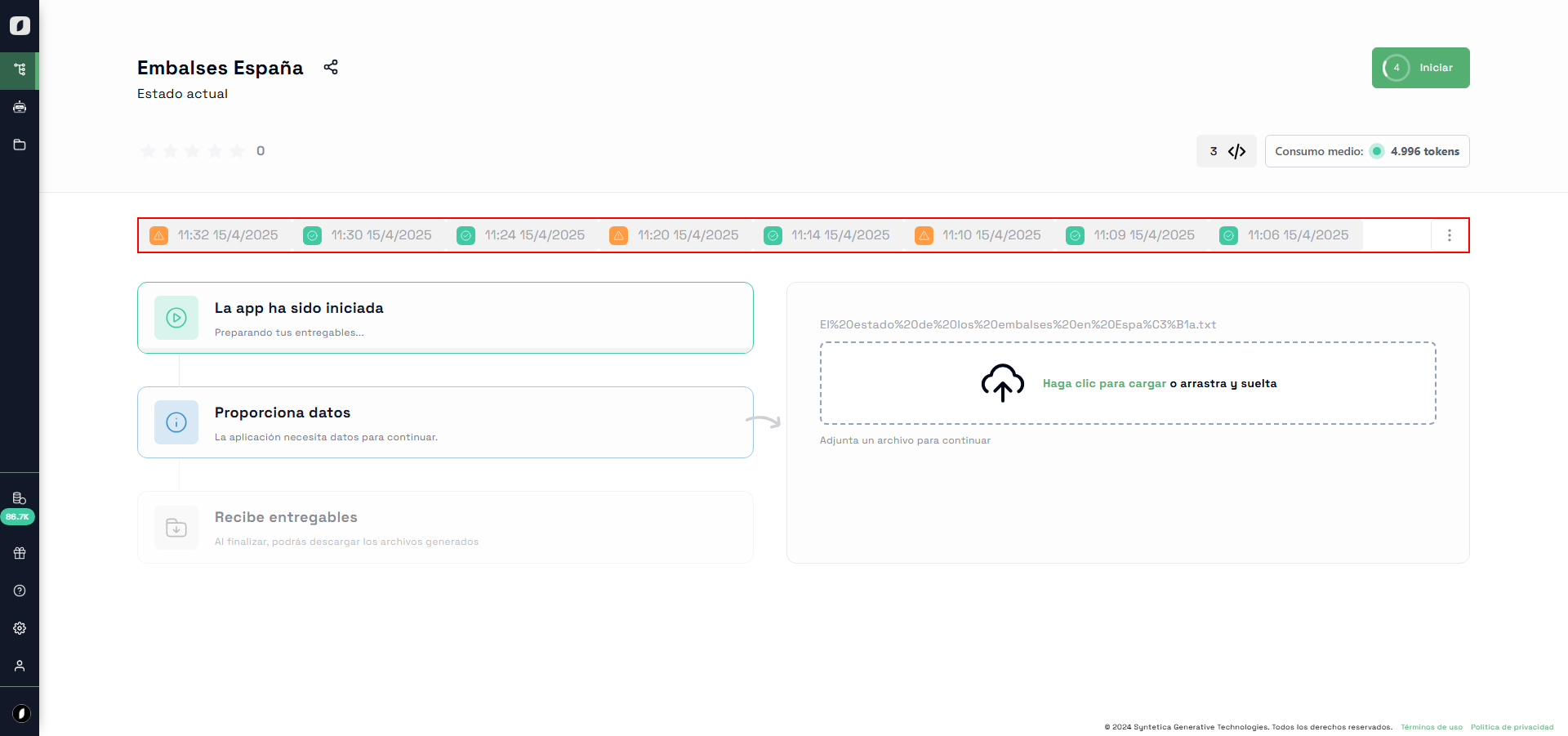 Image highlighting the tabs with execution statuses
Process Statuses
The App Has Started
At this stage, the app is working in the background. A progress bar shows how the process is advancing. This status remains active until the app finishes, unless the system requires your input — in which case, it will switch to the data request status.
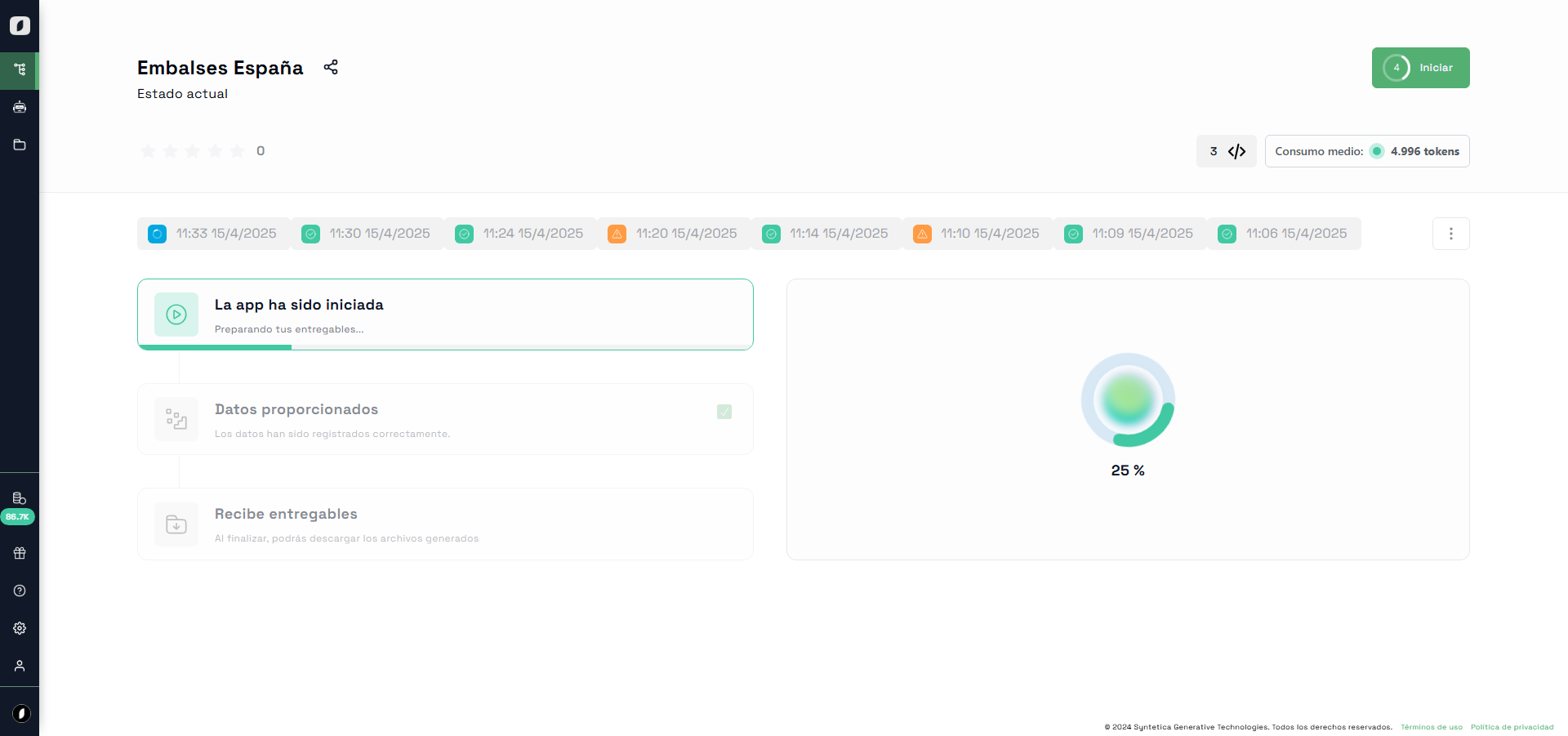 Image showing the progress indicator during execution
Provide Data
If the app needs additional information, this status will prompt you to fill out a form or upload a file. The system will notify you if action is needed. Once you've provided the required data, the execution will continue automatically to the next stage.
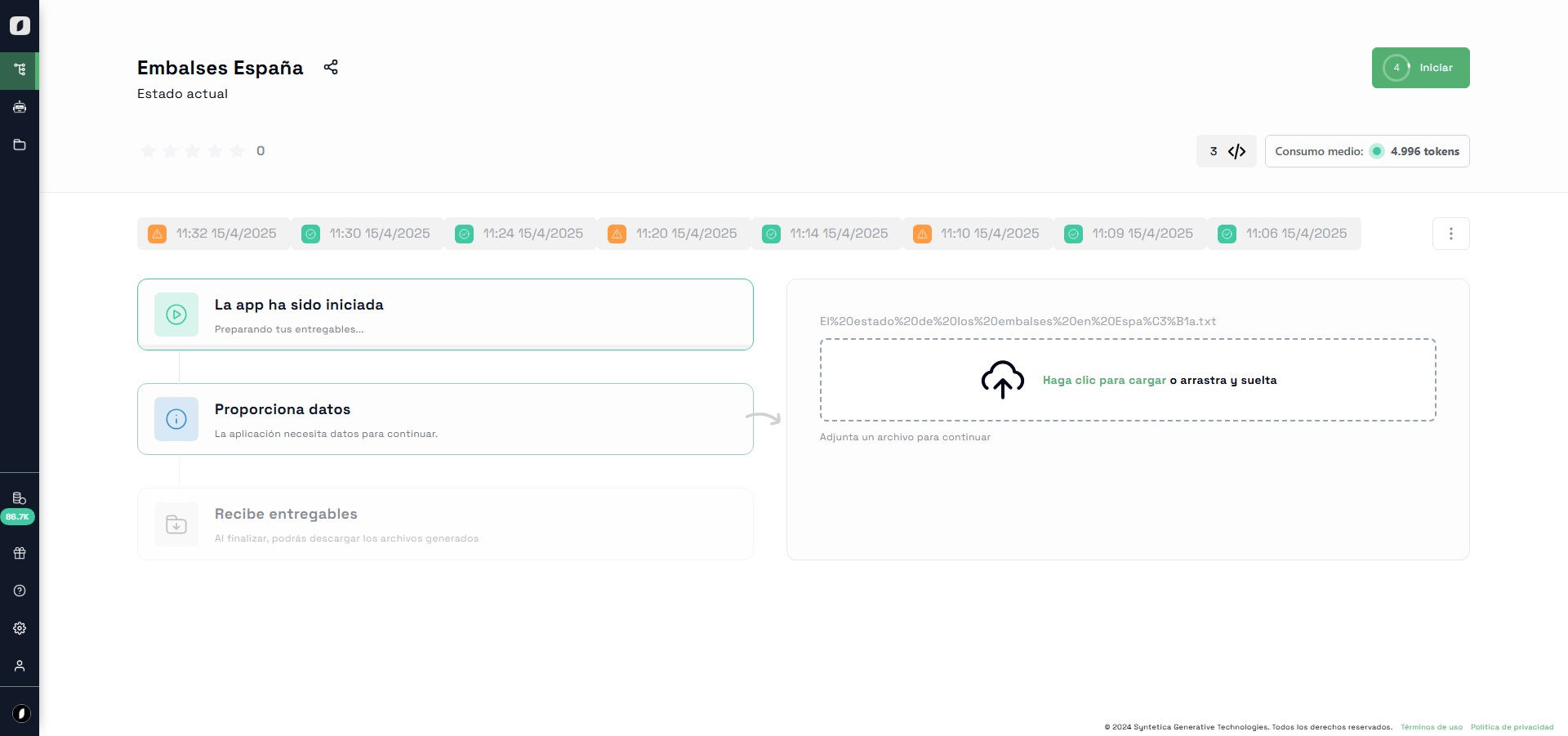 Image showing the form to enter data or upload files
Receive Deliverables
The deliverables generated by the app will be ready for download. They will appear in a list, and you can either download each file individually or click the “Download All” button to get everything at once.
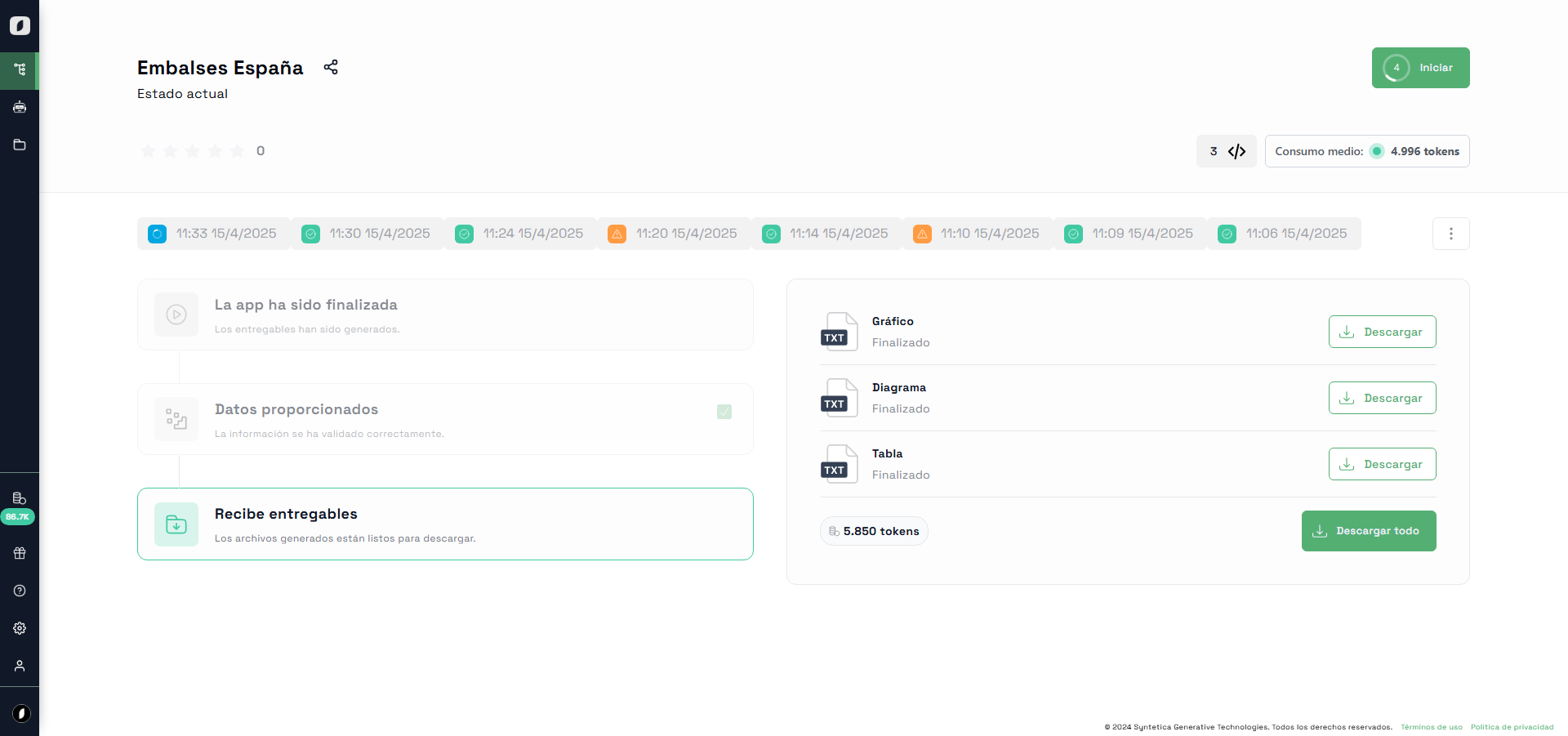 Image highlighting the deliverables ready to download
Token Usage
At the top right of the interface, you’ll see the average token usage for running the app. If you have less than 200% of the required tokens, the system will suggest recharging to ensure uninterrupted execution.
Note: Before launching an app, the system checks if you have enough tokens and notifies you if a top-up is needed. This helps avoid unexpected interruptions during execution.
 Image highlighting the token usage indicator
Rating and Sharing
Once the process is complete, you can rate the app using a five-star system. Click on the stars to leave your rating.
 Image showing the star rating system
You can also easily share the app using the share button next to the app name.


