Ready-to-use AI Apps
Easily manage evaluation processes and produce documents in different formats.
Block Operation and Control
The operation and control of blocks in the Syntetica generation tool are essential for ensuring efficient and accurate content generation. Blocks are the key component in building processes, allowing the incorporation of external data, generating content using artificial intelligence, and consolidating results into output files. Below, we detail the functionalities and controls of the blocks.
Block Controls
At the top right of each block, you will see the control area, which allows you to manage various actions. These controls vary depending on the block type but include options for editing properties, selecting content, generating or regenerating, stopping generation, and downloading content.
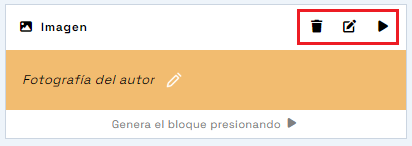 Block controls, showing buttons for editing advanced properties, generating content, and other actions depending on the block type
Edit Properties
The "Edit advanced properties" button opens a dialog with two tabs. The first tab, "Options," allows you to edit the block properties, such as the title or generation instruction. The second tab, "Result," allows you to view previous versions of the block content and restore them if necessary. This second tab will only be visible if content has already been generated in the block. This control is essential for adjusting and refining generation instructions to ensure that the generated content meets expectations.
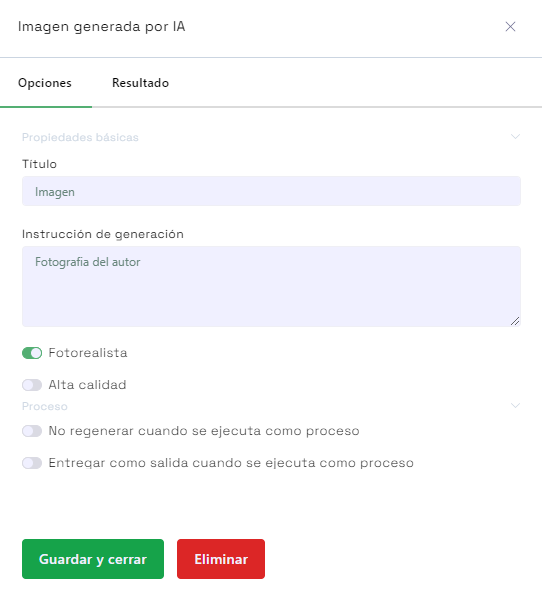 Advanced block properties dialog, showing options to edit the title and other specific block properties
Controls in Input Blocks
Input blocks allow you to incorporate external objects into the generation process. One of the available controls is "Select file," which opens a dialog to choose a local file or from one of the clouds integrated with the account. Once selected, the file is automatically uploaded for processing and use by other blocks.
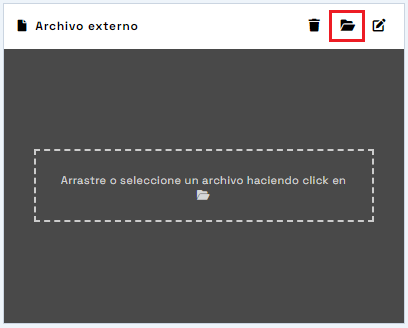 "Select file" in an input block of type file
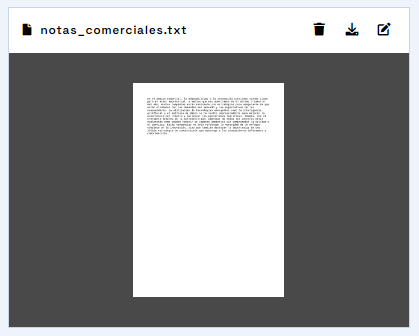 Input block of type file, used to incorporate documents from the local computer or synchronized clouds
Note: The "Send content" button will incur a token cost, which will be used to analyze the content in depth.
Controls in Generation and Output Blocks
Generation and output blocks have additional controls that allow you to manage content creation. First, a generation instruction is assigned if it's a generation block or a title for the output file if it's an output block. The "Generate content" button starts the content generation process based on the provided instruction and block properties. If the generated content needs adjustment, the "Regenerate content" button allows you to repeat the process with the same or new properties. Additionally, the "Stop generation" button halts the ongoing process, and the "Download content" button allows you to download the generated content.
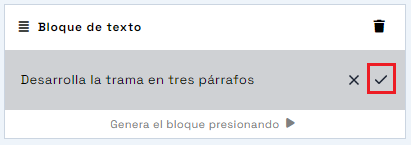 Assigning a generation instruction (a prompt) to a generation block
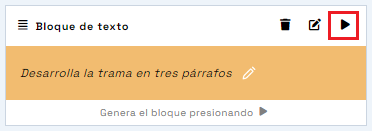 "Generate content" in a text generation block
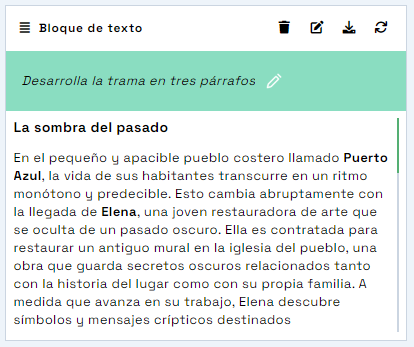 Text generation block, used to create texts composed of multiple paragraphs based on a specific instruction
Note: The "Generate content" (or "Regenerate content") button will incur a token cost, which will be used to generate the content using a multimodal LLM model.
Block Properties
All blocks have editable properties that determine both their appearance and behavior. These properties can be modified through the properties dialog, accessible via the "Edit advanced properties" button. Basic properties include the block title, and in the case of input blocks, it also allows selecting another associated file.
Block properties dialog, showing options to edit the title and other specific block properties
Basic Properties
Basic properties define the appearance and behavior of the block and are specific to each block. All blocks have a "Title" as a general property. These properties must be defined when adding a block to ensure that the generated content meets expectations.
Process Properties
Applications can be run automatically without needing to open the generation tool, and for that, they have some properties that allow you to decide what should be requested, generated, or delivered throughout the process that the application establishes. In input blocks, the option "Request this file when running the application" allows the user to be prompted for the file when the application is triggered. This defines input blocks as "inputs" or "process parameters."
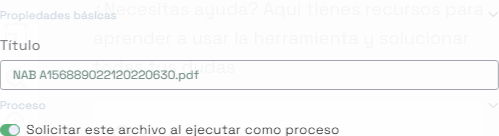 Application properties in input blocks, showing the option to request content when using the app
In generation and output blocks, the options "Do not regenerate when running as an application" and "Deliver as output when running as an application" allow you to keep generations static that do not need to be regenerated and declare a block as an "app deliverable," respectively.
 Application properties in a generation block, showing options to not regenerate when using the app and deliver file upon completion
Version Control
When generating new content, previous versions are not deleted but stored in the "Result" section, accessible through the properties of an object. From this section, previous content can be restored by clicking the "Restore version" button, or they can be deleted to recover space by clicking the "Delete version" button.
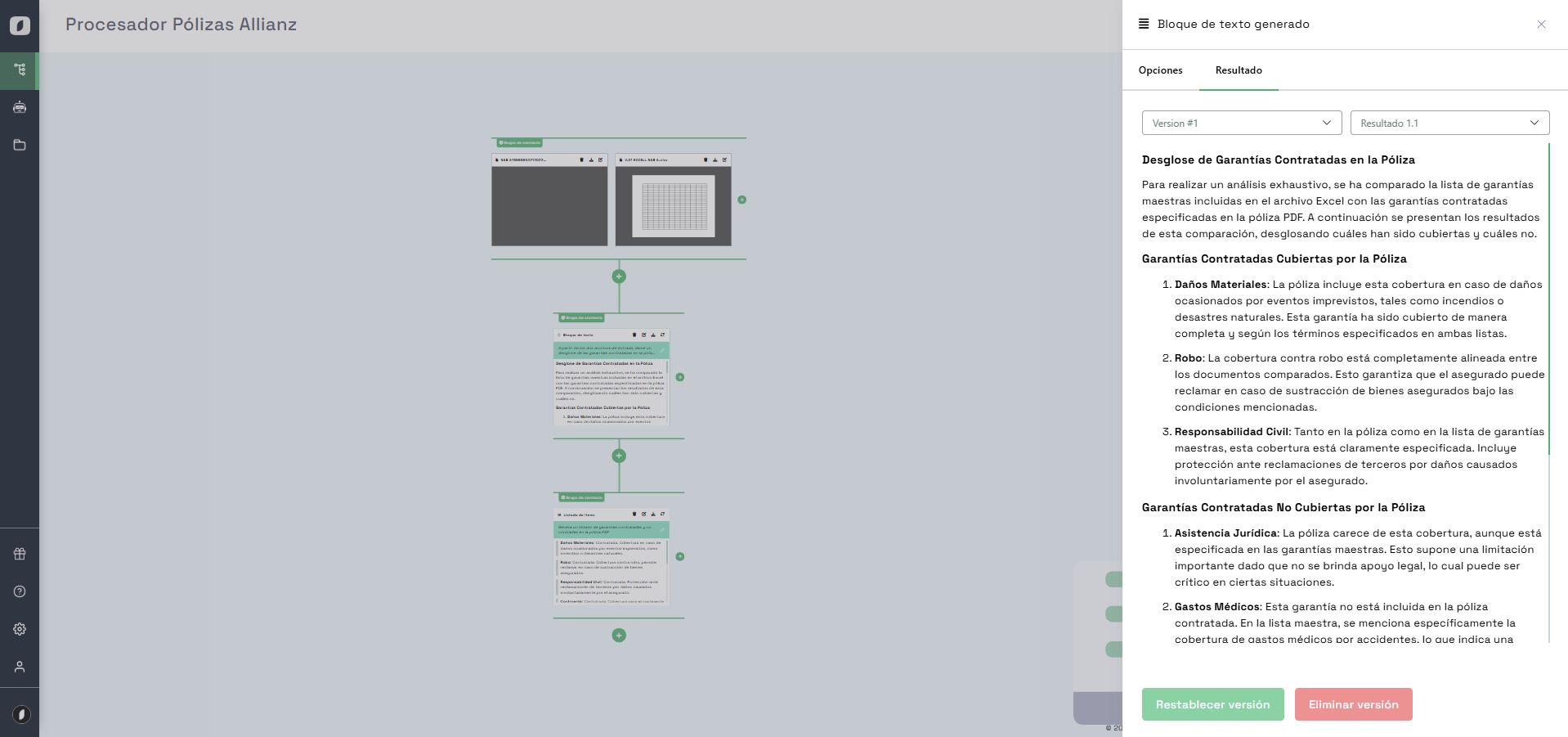 Version control, showing how to restore or delete previous versions of a block's content
Tip: Delete versions once they are no longer needed to free up storage space in your account.
In summary, the operation and control of blocks in the Syntetica generation tool are essential for ensuring efficient and accurate content generation. The available controls allow you to adjust block properties, manage content generation, and maintain a version history, making it easier to create complex documentation and other composite assets.


