Ready-to-use AI Apps
Easily manage evaluation processes and produce documents in different formats.
Document Management
In this article, you will learn how to manage your documents on the platform, including how to upload new documents, update names, delete and download files, as well as use the document search tool to find what you need efficiently.
Upload a New Document
To upload a new document to the platform, first access the "Documents" section from the navigation menu. Once there, you will see the option to "Upload a file". By clicking this option, a pop-up window will appear allowing you to select the file from your device. You can also drag the document you want to upload directly into the available drag & drop area.
It's important to ensure that the document you want to upload is in a format compatible with the platform. After selecting the file, simply confirm the action, and the document will be uploaded to the platform automatically. You will see a notification in the bottom-right corner informing you if the upload was successful.
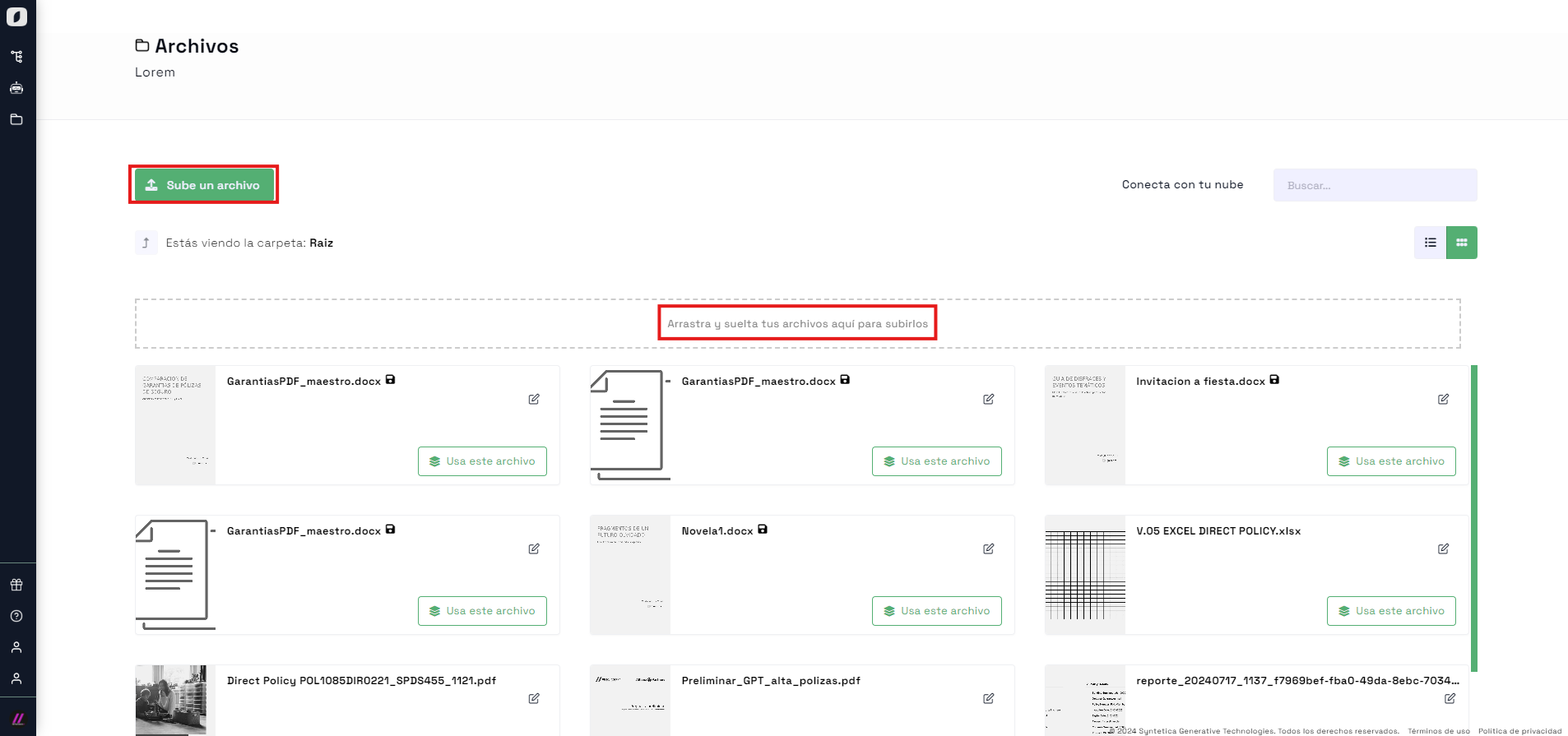 Pop-up window to select and upload a new document from your device. Drag & drop area.
Update a Document's Name
To update a document's name, first locate the file in the documents section. Once found, click on the "edit" icon of the document. This will display a menu where you should select the option "Edit properties".
After selecting this option, a pop-up will appear where you can enter the new name for the document. After entering the new name, make sure to click the "Save" button to confirm the changes. The platform will update the document's name and notify you about the action taken.
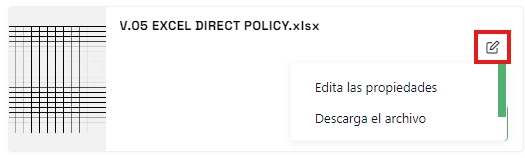 Drop-down menu to edit the document's properties.
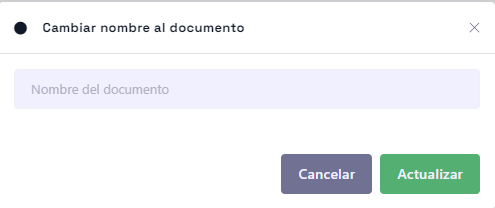 Pop-up to enter the new document name and save the changes.
Delete a Document
If you need to delete a document, first locate the file in the documents section. Click on the menu located at the bottom left of the app and select the "Delete" option. A confirmation pop-up will appear.
It is important to confirm the action by clicking the "Confirm" button in the pop-up. This action will permanently delete the document from the platform. Remember that deleted documents cannot be recovered, so ensure you really want to delete the file before confirming.
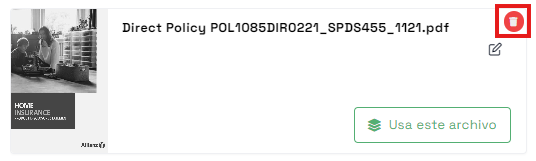 Menu option to delete a document.
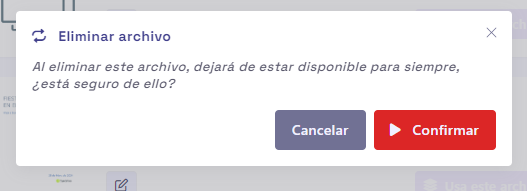 Confirmation pop-up to delete the selected document.
Download a Document
To download a document from the platform, first locate the file you want to download in the documents section. Click on the menu located at the bottom left of the app and select the "Download file" option from the drop-down menu.
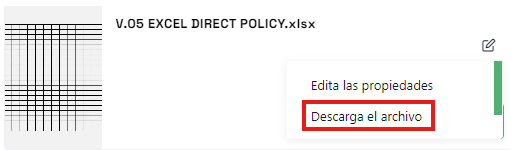 Download option in the drop-down menu.
The file will be automatically downloaded to your device. This functionality is useful when you need to access a document outside the platform or if you want to share it with other users who do not have access to the platform.
Use the Document Search Tool
The platform provides a search tool that makes it easy to locate specific documents. This tool is available at the top-right corner of the documents section.
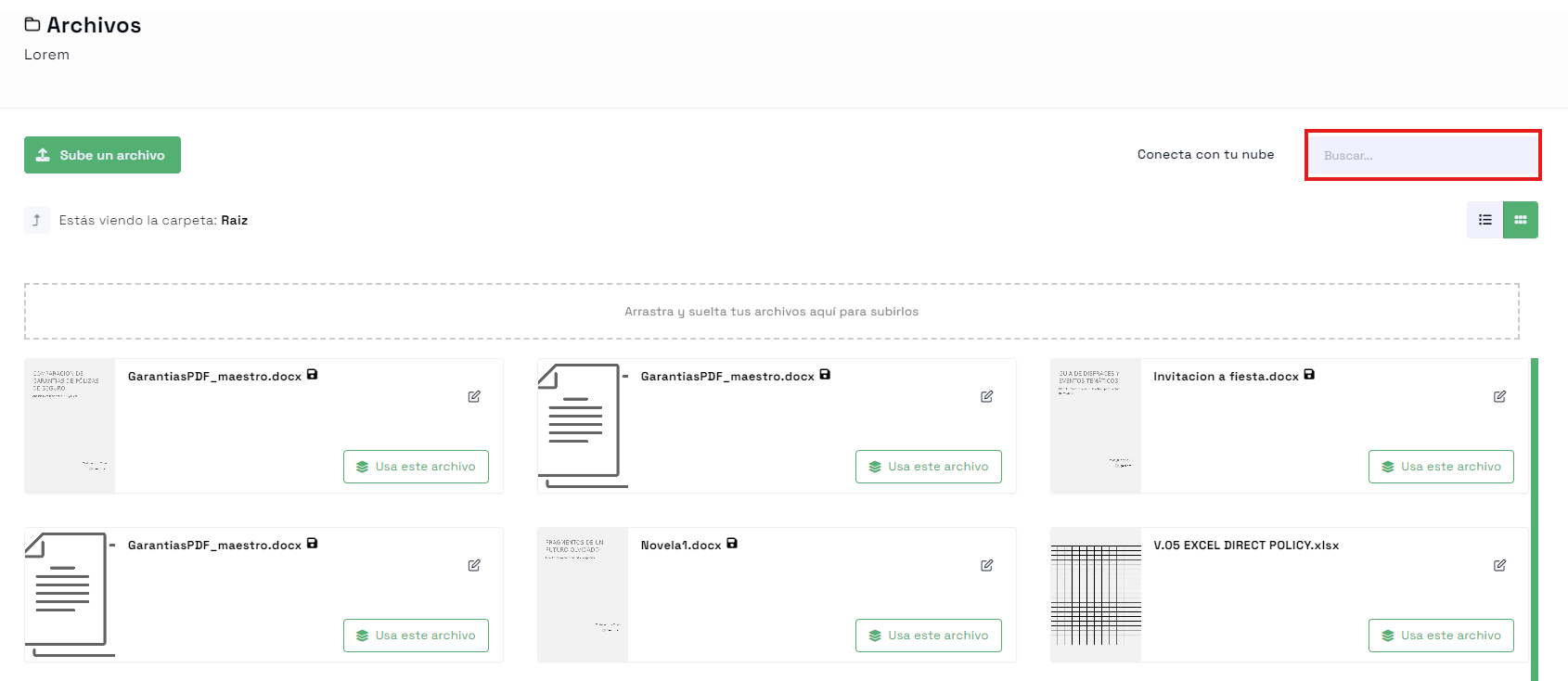 Document search tool.
To use the search tool, simply enter the name or part of the name of the document you are looking for in the search field. The platform will filter the results and only show documents that match your search. This feature is especially useful when you have a large number of documents and need to find one quickly.
Note: Files with a floppy disk icon are not editable and cannot be deleted in the current version of the platform. These files have been created in the generators and have specific restrictions.
Document management on the platform is a simple and efficient task thanks to the various available features. From uploading new documents to updating names, deleting and downloading files, and using the search tool, the platform allows you to keep your documents organized and easily accessible at all times.


